
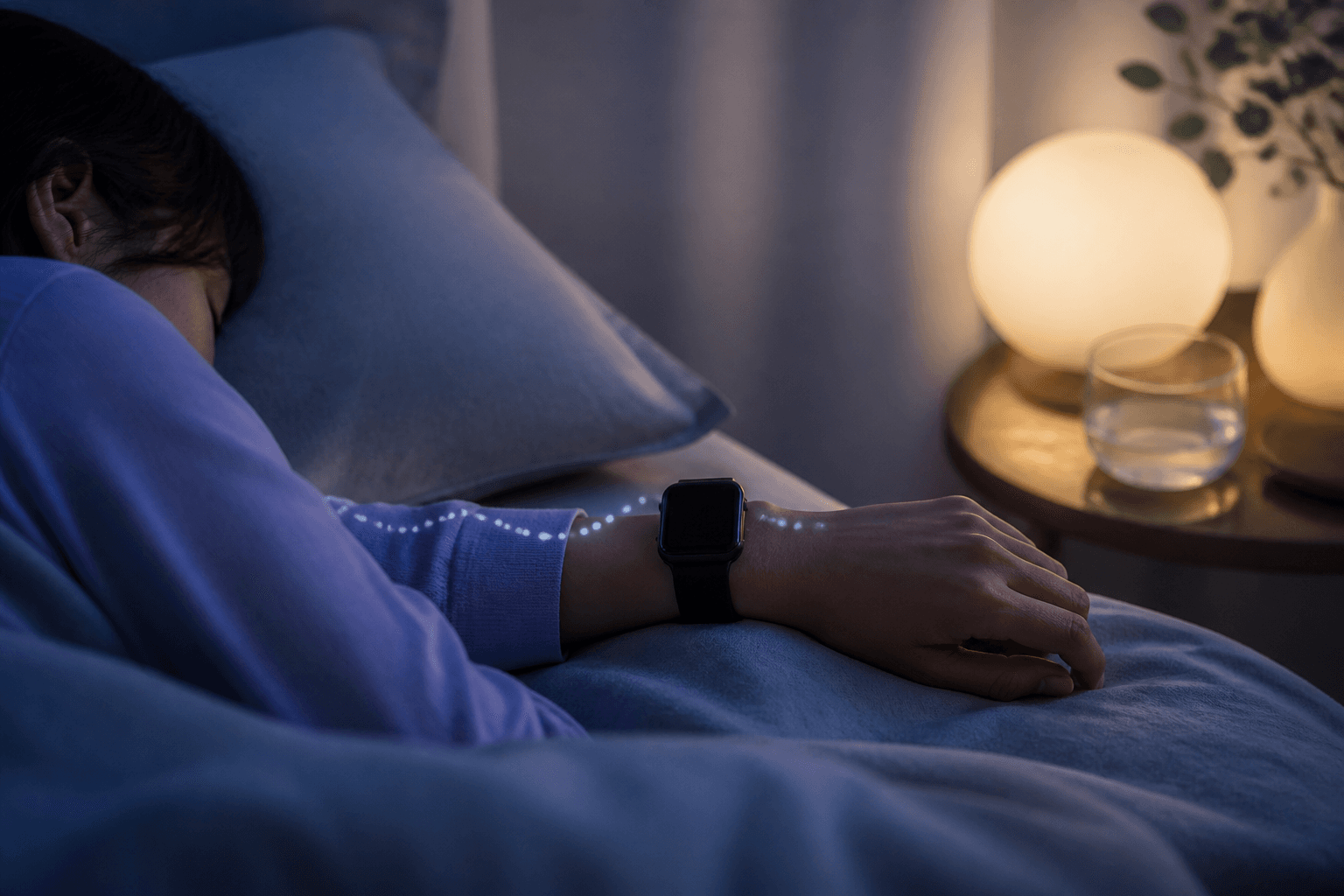
The short answer
First check that Track Sleep with Apple Watch is on. Then check whether you slept wearing it for at least one hour, had at least 30% charge before bed, kept enough battery overnight and wore it comfortably against your wrist. If stages appear but the score does not, wait about 15 minutes after waking and check software compatibility.
Key points
- Start by checking Track Sleep with Apple Watch
- Apple recommends at least 30% charge before bed and at least an hour of sleeping with the watch on
- A loose band or depleted battery can leave gaps
- If you slept outside your usual schedule, check Sleep Focus too
- A blank sleep record is not a measurement of insufficient sleep or poor health
First identify what is missing
“Sleep was not recorded” can mean an entirely blank record or only a missing part. The appropriate checks differ.
Open iPhone Health → Browse/Search → Sleep, select the date for last night and see which description fits.
- No graph at all: check sleep-tracking settings, wear time and battery
- Time in bed but no stages: check whether the source is iPhone or another app
- Stages but no score: wait after waking, then check operating system and model support
- A gap during the night: consider whether the battery ran out or the watch lost wrist contact
Seven morning checks
Are you viewing the right place and date?
Open iPhone Health → Browse/Search → Sleep and select last night in day view. A missing Summary card does not necessarily mean there is no record within Sleep.
Is sleep tracking on?
In the iPhone Watch app, check My Watch → Sleep → Track Sleep with Apple Watch. On the watch itself, use Settings → Sleep → Sleep Tracking.
Did you sleep wearing it for at least an hour?
Apple says at least one hour of sleep wearing the watch is needed for sleep data. A brief nap may not appear.
Was charge at least 30% before bed, with battery left by morning?
If the battery runs out, the rest of the night is not recorded. Charging reminders can help prevent forgetting to charge before bed.
Did the watch fit comfortably against your wrist?
Keep the rear sensor flat against skin, neither too tight nor too loose. Check that clothing or jewellery was not between the watch and your skin.
Did actual sleep timing differ from your schedule?
After travel, night shifts or weekends with different sleep times, check your sleep schedule and Sleep Focus.
Check software, model and data source
Update iPhone and Apple Watch to the latest available compatible systems. In Health’s Sleep section, open Data Sources & Access or Show All Data and check that Apple Watch appears as a source.
When stages appear but the score does not
If the graph shows Awake, REM, Core and Deep, the watch did record sleep itself.
First wait until about 15 minutes after waking. If only the score is still absent, check operating-system and watch-model support.
An older system or unsupported model may show sleep history without a sleep score. Check Apple’s current compatibility guidance.
Six preparations for tonight
- Charge to at least 30% in the evening
- Turn on Track Sleep with Apple Watch
- Check the sleep schedule or Sleep Focus against when you will actually sleep
- Adjust the band for comfortable rear-sensor contact with skin
- Sleep for at least an hour without removing the watch
- Wait about 15 minutes after waking before opening Sleep in Health
A blank does not mean zero sleep or poor sleep quality
A missing record means the watch could not adequately record that night. It is not a measured result of zero sleep or poor sleep quality.
Manually adding sleep duration afterwards does not recreate the stages or sleep score.
Seek medical advice for marked daytime sleepiness, habitual snoring or reported breathing pauses regardless of whether a record exists. Let symptoms guide the decision.
References
- Track your sleep with Apple Watch and use Sleep on iPhone — Apple Support
- Track your sleep with Apple Watch — Apple Watch User Guide
- View your sleep score on Apple Watch — Apple Watch User Guide
- Manage Health data — Apple Support